Knowing how to check ink levels on an HP printer is a basic but critical maintenance skill. HP printers rely on either liquid ink cartridges or powdered toner cartridges, and both require regular monitoring to avoid print interruptions. When users track ink or toner levels accurately, they reduce wasted prints, prevent damage to printer components, and order replacements before quality drops. With several built-in tools and software options available, HP makes it easy to stay informed and print confidently.

Why Checking Ink Levels Matters
An ink level check in the HP ecosystem means viewing the estimated remaining ink or toner inside a cartridge using software, printer hardware, or diagnostic tools. HP designs these systems to help users manage supplies proactively rather than react to empty warnings.
Monitoring ink levels helps avoid running out mid-print, which can ruin documents and waste paper. It also helps extend cartridge life by preventing printhead strain and allows users to plan replacements in advance. Inkjet printers use liquid ink that can dry out when levels run too low, while laser printers use toner powder that fades print quality gradually rather than stopping suddenly.
Understanding whether your HP printer uses ink or toner determines the most reliable way to track supply levels.

Why Checking Ink Levels Matters
How To Check Ink Levels on HP Printer — 4 Easy Methods
You can see HP printer ink or toner levels using the following four verified methods depending on your device and model.
1. Use the HP Smart App (Mobile & PC)
The HP Smart App is the easiest and most widely supported way to check ink levels. After opening the app, users select their connected printer and view estimated ink or toner levels directly on the dashboard.
This method works for most modern HP printers, including HP DeskJet, HP ENVY, HP OfficeJet, and HP Smart Tank. The app supports Windows, macOS, iOS, and Android, making it ideal for homes and offices with multiple devices.
For LaserJet users, the app also displays toner status for high-yield HP toner cartridges, such as the HP 206X black, cyan, magenta, and yellow high-yield toner cartridge pack, which is commonly used in busy office environments.
2. Use HP Printer Software (Windows or Mac)
HP printer software installed on a computer provides another reliable method.
On Windows, users open Control Panel, go to Devices and Printers, select the HP printer, and choose Maintenance or Supply Levels.
On macOS, users open System Settings, select Printers & Scanners, choose the HP printer, then click Options & Supplies to view supply status.
This method works best for printers with full driver installations. Some older or basic models may show limited data, especially when using refilled cartridges.
3. Check Printer Control Panel or Touchscreen
Many HP printers include a built-in display or touchscreen that shows ink or toner levels without a computer. Users access this by pressing Home and selecting the Ink or Toner icon.
Home models show simple indicators, while business printers like HP LaserJet Pro display percentage-based toner readings. This option is fast and reliable for day-to-day monitoring.
This method is particularly helpful when managing standard-yield color toner cartridges, such as the HP 414A cyan, magenta, and yellow toner cartridge pack, where visual confirmation helps plan timely replacements.
4. Print a Test or Diagnostic Page
Printing a test or diagnostic page offers indirect insight into ink levels and cartridge health. Users can initiate this through printer menus or by pressing specific button combinations, depending on the model.
The test page displays alignment patterns, color bars, or usage data. Faded colors, missing lines, or uneven density often signal low ink or toner, making this method useful when digital indicators are unavailable or unreliable.
How To Check Ink Levels on HP DeskJet Printers
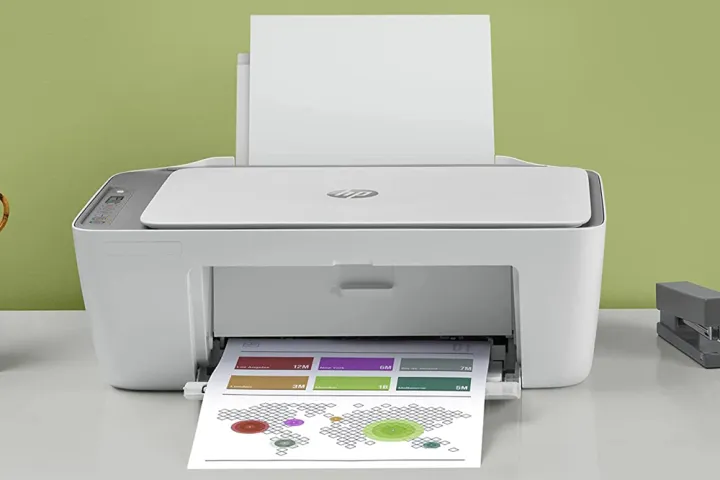
HP DeskJet printers are common in homes and small offices. Popular series such as DeskJet 2600, 2700, and 3700 support multiple ink-checking methods.
Most DeskJet models work seamlessly with the HP Smart App, which provides the clearest ink estimates. Some models also show basic indicators on the control panel. Older USB-only versions may require printing a diagnostic page. Wi-Fi–enabled DeskJet printers typically deliver the most accurate readings.

How To Check Ink Levels on HP DeskJet Printers
How To Check Toner Levels on HP LaserJet Printers
HP LaserJet printers use toner instead of liquid ink. Toner levels deplete gradually and are usually displayed as percentages rather than “empty” alerts.
Users can check toner levels through the control panel, the HP Smart App, or the printer’s Embedded Web Server (EWS). By entering the printer’s IP address into a browser, the EWS displays detailed supply data. This method is especially useful for offices running high-capacity color toner cartridges, such as the HP 218X cyan, magenta, and yellow high-yield toner cartridge pack, where accurate tracking helps avoid downtime.
Troubleshooting: HP Ink Levels Not Showing Correctly
Ink level readings may sometimes appear incorrect or fail to display. A loose cartridge or damaged chip can interrupt detection, so reseating the cartridge is a good first step. Outdated firmware or HP Smart App versions can also cause display issues.
HP printers are optimized for original cartridges. Refilling or using incompatible cartridges may prevent accurate ink tracking due to chip limitations. Understanding these factors helps users interpret ink data realistically.
How To Know When To Replace HP Ink Cartridges
Digital ink warnings are useful, but print quality offers equally important signals. Faded text, color streaks, missing lines, or repeated low-ink notifications indicate it is time to replace the cartridge. Resetting indicators after refilling may remove warnings but does not restore ink performance.
Replacing cartridges at the right time ensures consistent output and protects printer components. Users ready to restock can confidently plan ahead by purchasing compatible supplies from trusted sources.

How To Know When To Replace HP Ink Cartridges
Comparison: Ink Level Check Methods by Model
Different HP printer types support different ink-checking options. The table below summarizes compatibility.
|
HP Printer Type |
HP Smart App |
Control Panel |
Test Page |
|
DeskJet |
✔ |
✔ |
✔ |
|
Smart Tank |
✔ |
✔ |
✔ |
|
ENVY |
✔ |
✔ |
✔ |
|
LaserJet |
✔ |
✔ |
✔ (Toner) |
This comparison helps users choose the fastest and most accurate method for their printer.
Summary — Stay Informed, Print Confidently
Checking ink levels on an HP printer prevents printing interruptions, protects hardware, and saves time. Whether using the HP Smart App, printer software, control panels, or test pages, regular monitoring keeps printing reliable. Staying informed about ink and toner levels allows users to plan replacements confidently and maintain consistent print quality.
FAQs
How do I check ink levels without HP Smart App?
Use the printer control panel, computer software, or print a diagnostic page.
Why don’t ink levels show after refilling?
Refilled cartridges may not reset chip data, causing inaccurate readings.
How to check toner levels on HP LaserJet?
Use the control panel, HP Smart App, or the printer’s Embedded Web Server.
Does HP Smart App show exact ink percentage?
It shows estimated levels, not precise measurements.
Can I monitor multiple printers in one app?
Yes. HP Smart App supports multiple connected printers.