If you need to check ink levels on a Canon printer, the fastest method depends on the type of Canon machine you have. Some models show remaining ink in Canon’s printer utility on your computer, some display it on the printer screen, and MegaTank models often let you check the tank visually at a glance. Canon’s own manuals and support pages confirm these are the primary paths users rely on.
Start Here: Identify Which Type of Canon Printer You Have
Before you try any menu or software setting, the most important step is identifying what kind of Canon printer you are using. This matters because Canon does not handle ink status the same way across cartridge models, tank models, and toner-based laser printers. If you skip this step, you can easily follow the wrong instructions and assume your printer is not showing ink levels when the real issue is simply that you are checking the wrong place.
Canon inkjet users usually fall into one of two groups: standard cartridge-based PIXMA models and refillable MegaTank models. Cartridge-based units typically report remaining ink through Canon software or the printer’s display, while MegaTank printers often let you confirm levels visually by looking at the front tank windows. Canon’s support documentation separates these workflows in exactly this way, which is why a model-first approach gives the clearest path.
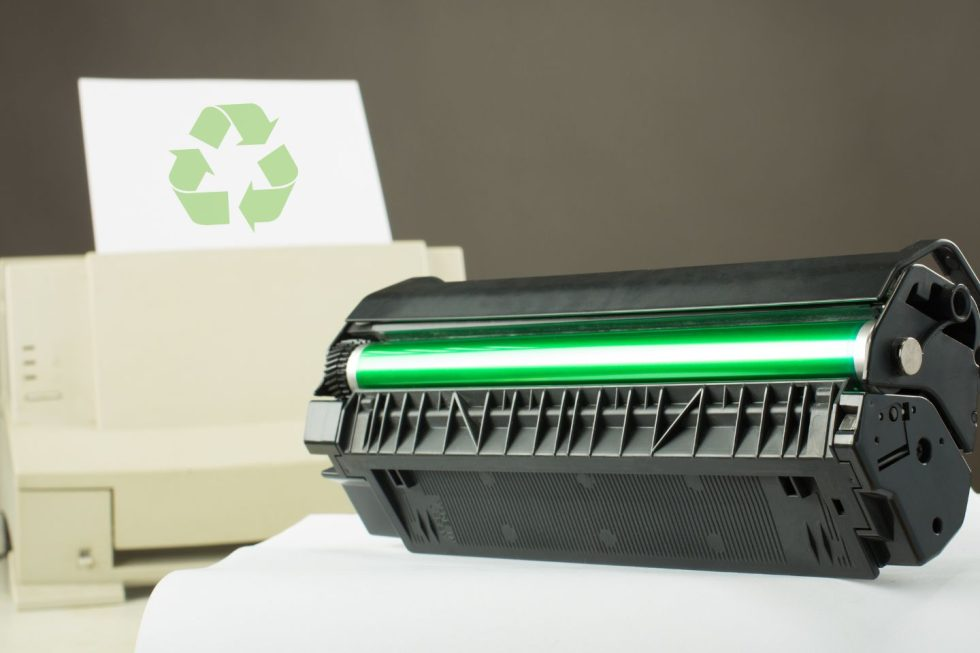
If you are using a Canon laser printer, especially an imageCLASS device, you are usually checking toner rather than liquid ink. The process is conceptually similar, but the terminology changes and some menu labels may differ. On an eCommerce site like Deal Just Deal, this distinction also matters because the product collections are organized around toner cartridges and printers rather than generic “ink” alone. Deal Just Deal currently surfaces a dedicated how to check ink levels on canon printer collection under Canon Toner Cartridges, alongside its broader toner category and printer catalog.
Canon PIXMA Cartridge Printers
These are the most common home and small-office Canon models for this query. They generally use replaceable cartridges and report remaining ink through Canon IJ Status Monitor on Windows, Canon IJ Printer Utility on Mac, or an on-device display if the model includes one.
Canon MegaTank / G-Series Printers
These models are different because the tanks are refillable and often visible from the front of the unit. In many cases, the simplest way to check levels is not software at all but a direct visual check of the tanks.
Canon imageCLASS Printers
These are laser printers, so the consumable is toner. If someone searches for this keyword while using a Canon laser device, they are still trying to solve the same problem, but the article should clarify that they are checking toner status, not ink.
The Fastest Ways to Check Ink Levels on Canon
Once you know what type of Canon printer you have, the next step is choosing the fastest method for your situation. The best article for this keyword should not force the reader through every option in sequence. Instead, it should help them use the quickest route based on whether they are sitting at a Windows PC, on a Mac, standing in front of the printer, or checking from their phone.
For most users, the top priority is speed. They usually want to know one thing: can they keep printing, or is it time to replace the cartridge? That is why the methods below are organized by context rather than by technical complexity.
Check Ink Levels on Windows with Canon IJ Status Monitor
If your Canon printer is connected to a Windows computer, this is often the most reliable and practical method. Open the Canon printer software from your installed printer utilities, then look for the status or maintenance section. On many Canon inkjet setups, the remaining ink appears in the Canon IJ Status Monitor window.

This method is especially useful because it does more than show a rough status. It often gives a clearer warning when a cartridge is low, nearing empty, or needs attention. For users printing from a desktop or laptop, this is typically the most efficient way to confirm whether the issue is truly low ink or something else, such as a printhead or nozzle problem. Canon’s own documentation for supported models explicitly points users to the printer driver utility to view remaining ink.
If you are preparing to replace a cartridge after checking levels, it is natural to transition readers toward a product category rather than a single SKU too early. In that context, a broader how to check ink levels on canon printer collection link fits well because Deal Just Deal’s Toner Cartridges category functions as a parent collection for Canon and other printer consumables.
Check Ink Levels on Mac with Canon IJ Printer Utility
Mac users usually follow a similar logic, but the interface is often labeled differently. Instead of using the Windows status monitor, you will typically open Canon IJ Printer Utility and check the supply information or maintenance area from there.

This route is useful because many Mac users assume they must check ink only through system settings. In practice, the Canon utility is usually the more direct place to look. If the printer is properly installed and communicating with your Mac, it can show the current cartridge status without requiring you to navigate through multiple menus. Canon support documentation for applicable models points users toward the printer utility rather than generic macOS printer settings for the most accurate on-brand workflow.
Check Ink Levels on the Printer Screen or LCD
If your Canon model has a display, checking ink levels directly on the printer can be the fastest option. This is especially helpful when you are standing near the machine and simply want a quick confirmation before starting a print job.

On many Canon printers, you can open the setup, maintenance, or ink information menu and view a visual indicator for each cartridge. The exact wording varies by model, which is why the article should avoid pretending every Canon printer has the same navigation path. Still, the principle remains consistent: if the printer has an LCD or touchscreen, it often provides an on-device shortcut to supply status. Canon model-specific manuals confirm this behavior, even though the menu labels differ from one series to another.
This method is ideal for quick checks, but readers should still understand that the display is often giving an estimate, not a laboratory-precise measurement. If they are getting faded output, streaking, or inconsistent color even when the printer still shows some remaining ink, a test print may be more useful than relying on the icon alone.
Check Ink Levels with the Canon PRINT App
If you are on your phone or away from your computer, the Canon PRINT app can be a convenient option. This is not always the first method people think of, but it can be the fastest one when the printer is already connected to your mobile setup.

The practical advantage here is accessibility. Instead of opening a desktop utility, you can quickly confirm supply status from the same device you may already be using to send wireless prints. For users in home offices or shared households, that can save time and reduce the friction of “I just need to know whether the printer is about to run out.” Support and guide pages across the current SERP consistently position mobile app checks as a secondary but useful route.
Check Ink Levels by Looking at the Ink Tank (MegaTank Only)
For MegaTank models, visual inspection is often the simplest method. If your Canon printer has transparent or semi-transparent tank windows, you can usually see the liquid level directly without opening any utility at all.

This is one of the clearest examples of why generic advice fails on this keyword. A user with a tank-based Canon does not need to hunt for a driver menu first. They can often glance at the machine and get the answer immediately. That is a major reason this topic benefits from a model-aware article rather than a one-size-fits-all guide. Canon documentation for tank-based models supports this distinction by treating visible tank status as a normal part of the user workflow.
If the reader realizes during this step that the issue may be with the printer itself rather than the consumable, another contextually relevant internal path is the broader how to check ink levels on canon printer collection, which Deal Just Deal presents as its main Printers category.
What Canon’s Ink Warnings Actually Mean
Checking the level is only half the job. The next question is what the warning actually means, because many users see “low ink” and immediately assume they must stop printing. In reality, Canon warnings often indicate a threshold, not an instant hard stop.
A “low ink” warning usually means the printer believes a cartridge is approaching the end of its usable life. It does not always mean printing must stop right away. In many cases, you can still finish a small job, but print quality may begin to decline. An “empty” warning is more serious and usually signals that replacement should happen soon, especially if output has already become faint or inconsistent. Canon support materials and third-party guides consistently frame these messages as usage estimates rather than perfect real-time measurements.
Another important point is that the displayed level is often an estimate. Canon printers commonly infer remaining supply based on usage behavior, internal tracking, and cartridge communication, rather than measuring the physical liquid in real time on every model. That is why the visible status can sometimes feel slightly off from what the user expects.
Compatible cartridges can complicate this further. In some setups, third-party or previously used cartridges may not report status cleanly, or they may show inaccurate readings. This does not automatically mean the cartridge is bad, but it does mean the user should judge the warning together with actual print quality rather than trusting the display in isolation.
Quick Reference Table: What the Warning Usually Means
|
Warning or Symptom |
What It Usually Means |
Best Next Step |
|
Low ink |
Cartridge is nearing depletion |
Finish urgent prints, prepare replacement |
|
Empty ink |
Printer believes supply is exhausted |
Replace soon, especially if output is fading |
|
Ink level not shown |
Monitoring may be unavailable or inconsistent |
Recheck utility, restart, test print |
|
Colors look weak but levels seem okay |
Estimate may be off, or nozzles may need attention |
Run a test print before replacing |
Tóm tắt nhanh: bảng này giúp người đọc hiểu rằng cảnh báo mức mực chỉ là tín hiệu để ra quyết định, không phải lúc nào cũng là một con số tuyệt đối phải thay ngay.
What to Do If Your Canon Printer Is Not Showing Ink Levels
If your Canon printer is not showing ink levels, do not assume the cartridge is the only cause. In many cases, the issue is tied to the software utility, printer communication, or cartridge reporting behavior. This is where many competing articles stay too shallow, and it is also where a stronger, more useful guide can win.
Start by restarting the printer and reopening the Canon utility. That may sound basic, but a fresh connection often restores status reporting if the issue is only a temporary communication problem. If the printer was sleeping, disconnected, or recently switched networks, this simple reset can solve it.
If that does not work, check the Canon driver or utility installation. A missing, outdated, or partially broken driver can prevent the computer from showing supply data correctly. On Windows, this often means the status monitor does not load properly. On Mac, it may mean the utility is installed but not communicating as expected.
There is also the possibility that ink monitoring has been disabled or is no longer reporting accurately because of the cartridge type. In that case, a test print becomes a more practical diagnostic step than continuing to chase the display. If the print quality is still strong, you may have time before replacing anything. If quality has dropped, the printer has already given you the real answer even if the supply meter is unclear.
This is one of the biggest missed opportunities in current SERP content. Many pages tell users where to look for ink levels, but they do not help enough when the indicator is missing or misleading. Covering that gap is a direct path to making the article more useful than the current average result.
Restart the Printer and Reopen the Utility
This should always be your first check because it is quick and low effort. If the printer reconnects and the utility refreshes normally, the issue may be solved in under a minute.
Update or Reinstall the Canon Driver
If the utility is not showing data consistently, the driver layer is a logical next place to look. Reinstalling often restores proper communication between the printer and your system.
Check If Ink Monitoring Has Been Disabled
Some printers or cartridge setups stop reporting supply status normally. If that has happened, the absence of a visible level does not always mean the cartridge is empty.
Test Print Before Replacing the Cartridge
A test page tells you whether the printer is still producing usable output. This is often more valuable than relying on a questionable status meter.
When You Should Replace the Ink Cartridge
The reason people search for this keyword is rarely pure curiosity. Most want to know whether they can keep printing or whether they need to replace a cartridge now. That practical decision is what turns a basic how-to article into a genuinely useful one.
If your Canon printer shows low ink but print quality is still normal, you may still be able to complete a short print job. In that situation, the smart move is to prepare a replacement rather than panic-replace immediately. If the printer shows empty, colors have faded, black text is no longer solid, or output is streaking, replacement should move higher on the priority list.
The best user experience here is not aggressive selling. It is helping the reader understand the threshold between “monitor it” and “replace it now.” That trust-first approach also creates a better transition into product-category navigation, because the reader feels guided rather than pushed.
If you are replacing the cartridge, confirm the exact Canon model and cartridge family before buying. This is especially important with Canon because similar-looking cartridge names can fit different machines. A content piece that helps users verify fitment before purchase will naturally perform better for both trust and conversion than one that jumps from problem to sales pitch too fast.
Signs You Can Keep Printing a Little Longer
You can usually keep going briefly if the printer only shows low ink, output still looks clean, and you do not have a large or critical job queued.
Signs You Should Replace the Cartridge Now
Replace the cartridge sooner if the printer shows empty, colors are visibly fading, text is uneven, or repeated cleaning cycles are no longer restoring quality.
How to Confirm the Correct Replacement Cartridge
Always verify the printer model first, then match it to the correct Canon cartridge or toner family. This avoids wasted spend and prevents the common mistake of buying a similar but incompatible SKU.
Final Takeaway
The fastest way to check ink levels on a Canon printer is to match the method to the machine: use Canon’s printer utility on Windows or Mac, check the on-device display if your model has one, use the Canon PRINT app on mobile, or inspect the tank directly on MegaTank models. Once you know the status, the goal is simple: decide whether you can keep printing or whether it is time to replace the cartridge.
If you are ready to replace your cartridge or browse printer supplies, you can explore the latest options at Deal Just Deal, where the site organizes printer products into dedicated toner and printer collections for easier navigation.