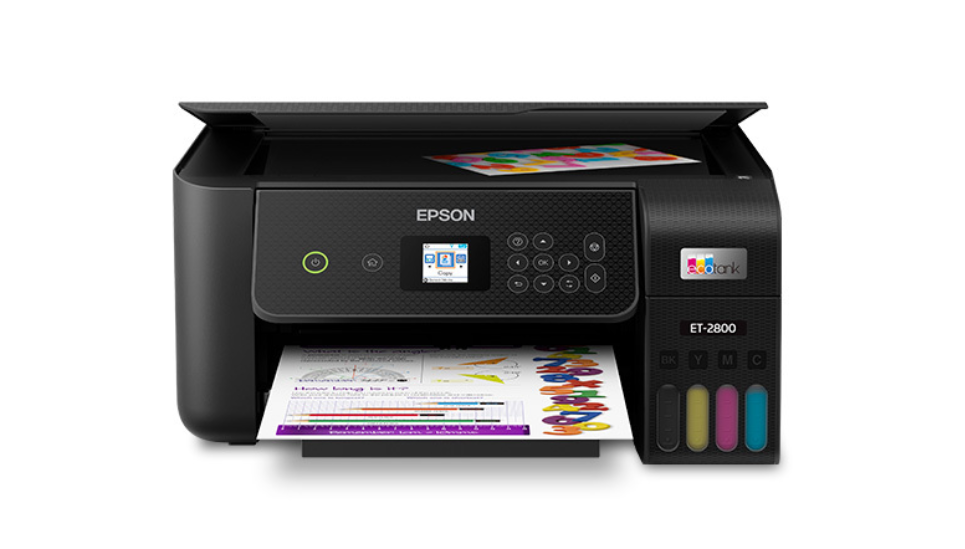
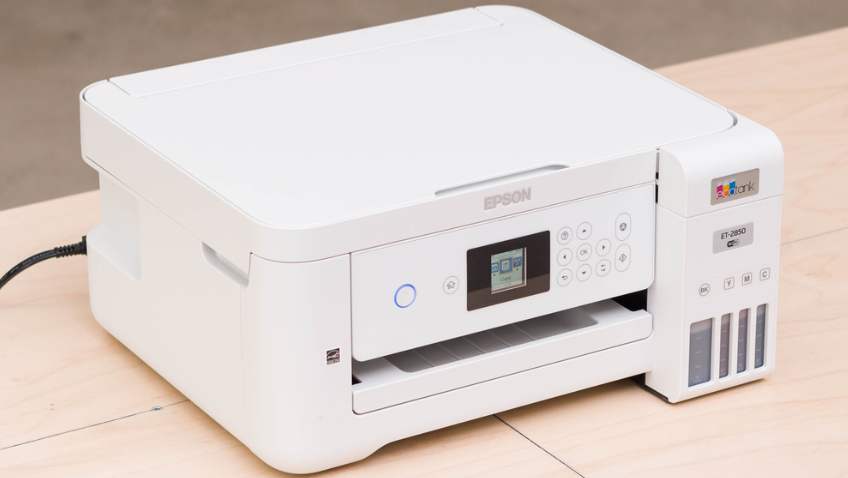
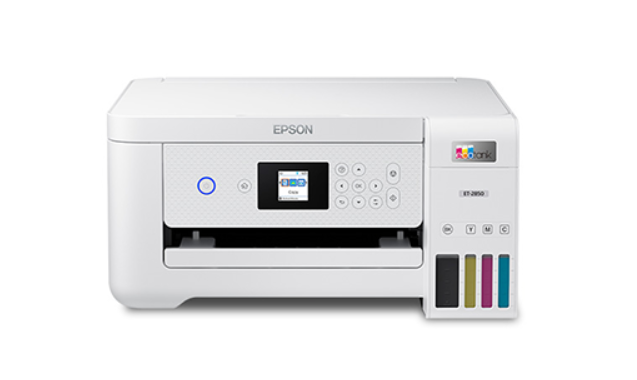
To check ink levels on an Epson printer, open Epson Status Monitor on Windows via Control Panel > Devices and Printers > Maintenance tab, or use System Preferences > Printers & Scanners > Options & Supplies on Mac. For mobile, open the Epson Smart Panel app. EcoTank users can check visually through the transparent ink tanks on the front of the printer.
Running out of ink mid-print is one of the most avoidable printing frustrations. Whether you own an Epson EcoTank, WorkForce, or Expression printer, checking ink levels takes under a minute once you know where to look. This guide covers all five methods — printer control panel, Windows, Mac, mobile app, and physical inspection — so you can check from whichever device is closest.
The table below shows which method works best depending on your device and printer type.
|
Method |
Device Needed |
Best For |
Printer Type |
|
Control Panel |
Printer only |
Quick spot check |
LCD models |
|
Epson Status Monitor |
Windows PC |
Detailed reading |
All cartridge models |
|
Mac Printer Utility |
Mac |
Detailed reading |
All cartridge models |
|
Epson Smart Panel App |
iPhone / Android |
Remote monitoring |
Wi-Fi models |
|
Visual Inspection |
No device needed |
Instant confirmation |
EcoTank only |
Summary: Each method serves a different situation. Use the control panel or visual inspection for a quick check, Status Monitor or Mac Utility for detailed readings, and the Smart Panel app when you need to monitor from your phone.
Method 1: Check Ink Levels Directly on Your Epson Printer
This is the fastest method and requires no computer or phone. If your Epson printer has an LCD or touchscreen display, you can read ink levels in under 30 seconds without leaving the printer.

Epson Printers with LCD or Touchscreen (WorkForce WF-2850, ET-4760, WF-3640)
Most mid-range and higher Epson printers include an LCD panel that shows ink status directly. Follow these steps:
1. Press the power button to wake the printer.
2. On the home screen, press the Home or Menu button.
3. Navigate to Maintenance or Setup using the arrow keys.
4. Select Ink Levels or Ink Status.
5. A color bar graphic will display the approximate remaining ink for each cartridge — cyan, magenta, yellow, and black.
The display shows colored bars that shrink as ink depletes. You do not need to replace a cartridge the moment any bar drops — use the replacement thresholds in the section below to decide when to act.
Epson Printers Without an LCD (Basic Expression Models)
Simpler Epson models without a full display use a basic icon-based status panel. Turn on the printer, press the Setup button, scroll to Maintenance, then select Ink Levels. The screen shows small icons or bars per cartridge, giving a general low/medium/full indication rather than a precise percentage.
Method 2: Check Ink Levels on Windows Using Epson Status Monitor
Epson Status Monitor 3 is the most detailed ink-level tool available for Windows users. It shows exact level estimates per cartridge and alerts you when a replacement is approaching.

Automatic Display When Printing
When you send a print job to your Epson printer, Status Monitor often opens automatically and displays current ink levels in the progress dialog. This is the simplest way to check levels if you are already printing.
Manual Access via Control Panel
To check ink levels without printing, follow these steps:
6. Open Control Panel on your Windows PC.
7. Select Devices and Printers (or Printers and Scanners on Windows 11).
8. Right-click your Epson printer name from the list.
9. Select Printing Preferences.
10. Click the Maintenance tab.
11. Click Epson Status Monitor 3.
12. A graphic window appears showing the ink level for each cartridge as a colored bar with an approximate percentage.
If Status Monitor does not open or shows an error, your printer driver may need updating. Download the latest driver from Epson's official support site for your printer model.
Method 3: Check Ink Levels on Mac
Mac users access ink levels through System Preferences rather than a separate desktop utility. The process differs slightly between macOS Ventura and earlier versions, but the destination is the same.

13. Click the Apple menu and open System Preferences (or System Settings on macOS Ventura and later).
14. Select Printers and Scanners.
15. Click your Epson printer from the list on the left.
16. Click Options and Supplies.
17. Select the Utility tab.
18. Click Open Printer Utility.
19. Select Epson Status Monitor. A window opens displaying the ink level for each cartridge.
After the window opens, click Update to refresh the displayed readings. Note that the ink levels shown are estimates — Epson calculates remaining ink by tracking usage internally rather than measuring directly.
Method 4: Check Ink Levels Using the Epson Smart Panel App
The Epson Smart Panel app lets you monitor ink levels from your smartphone without being near the printer. It is the most convenient option for anyone who regularly prints from a phone or needs to check levels remotely before starting a job.

20. Download Epson Smart Panel from the App Store (iOS) or Google Play (Android).
21. Make sure your phone and printer are connected to the same Wi-Fi network.
22. Open the app and follow the on-screen prompts to add your Epson printer.
23. On the app home screen, tap the ink drop icon at the top.
24. The current ink level for each cartridge is displayed as a colored percentage bar.
Supported models include Epson EcoTank ET-2850, ET-4760, WorkForce WF-2850, WF-3640, and Expression XP-5100, among others. Older Epson printers may use Epson iPrint instead, which provides similar ink level visibility.
For a comparison of how other printer brands handle ink monitoring, see How To Check Ink Levels on HP Printer.
Method 5: Visual Inspection for Epson EcoTank Models
Epson EcoTank printers use refillable ink tanks instead of sealed cartridges. Because the tanks are transparent, visual inspection is the most direct and accurate way to check remaining ink — more reliable than software estimates for this printer type.

25. Locate the ink tanks on the right front side of the EcoTank printer (ET-2400, ET-2800, ET-2850, ET-4760, and similar models).
26. Look at the ink level against the upper and lower fill lines printed on each tank.
27. If the ink level is at or approaching the lower line, refill that tank before printing.
28. Cross-reference with the Epson Smart Panel app or Status Monitor to get a software estimate alongside the visual check.
Epson strongly advises against printing when tank levels fall below the lower line. Doing so risks drawing air through the ink delivery system, which can cause printhead damage that is costly to repair. For EcoTank refill guidance, use only genuine Epson ink bottles matched to your specific model.
If you are comparing EcoTank ink capacity to standard cartridges, the What Does XL Mean on Ink Cartridges? guide explains how cartridge capacity is measured and what the XL designation actually means.
When Should You Replace Epson Ink Cartridges?
Knowing the ink level is only useful if you know what to do with the information. The right time to replace depends on what you are printing and how much of it.
Recommended Replacement Thresholds
The table below provides practical replacement thresholds based on print type.
|
Use Case |
Replace When Below |
Reason |
|
Photo printing |
25% |
Color accuracy degrades before cartridge is empty |
|
Document / text printing |
10-15% |
Text holds quality longer; replace before a large job |
|
Large print jobs (50+ pages) |
30% |
Avoid running dry mid-job and wasting paper |
|
EcoTank models |
At lower line on tank |
Do not let tank fall below lower line; risks printhead damage |
Summary: Photo printing requires earlier replacement because color accuracy degrades as cartridges deplete. Text printing can continue to lower levels. EcoTank users should treat the lower fill line as an absolute minimum, not a warning.
Warning Signs Beyond the Low Ink Alert
Sometimes print quality deteriorates before the software alert appears. Watch for these signs:
Streaky or banded output on text pages indicates low black ink or a partially clogged nozzle. Faded or off-tone colors in photos suggest one or more color cartridges are running low. Partial pages where content cuts off mid-print is the most urgent signal — the cartridge ran dry during the job. If you see any of these, check levels immediately before reprinting.
If you are running low and need a replacement, browse available cartridges at DealJustDeal's ink and toner cartridges collection before starting a large job.
Troubleshooting: When Epson Ink Levels Show Incorrect Readings
Inaccurate ink level readings are one of the most common issues Epson users encounter — particularly after replacing or refilling cartridges. Understanding why this happens prevents unnecessary purchases.
Ink Levels Not Updating After Cartridge Replacement
Epson printers estimate ink usage via an internal counter, not a direct sensor. After installing a new cartridge, the counter sometimes takes a print job or two to recalibrate. To force a refresh, open Epson Status Monitor and click Update. If the reading still appears incorrect, restart the printer, reseat the cartridge firmly, and run a nozzle check from the Maintenance tab.
Ink Level Shows Full But Print Quality Is Poor
If ink levels appear fine but output is streaky, banded, or missing colors, the issue is almost always a clogged printhead rather than a depleted cartridge. Run the Nozzle Check utility from the printer's Maintenance menu or through Epson Status Monitor. If the nozzle check pattern shows gaps, run Head Cleaning before spending money on a new cartridge.
Epson Status Monitor Not Opening or Displaying an Error
This usually indicates a driver or connectivity issue. First, confirm the printer is powered on and connected — either via USB or the same Wi-Fi network as your computer. If the connection is fine, check whether the printer driver is up to date by visiting Epson's support site and downloading the latest driver for your model. Reinstalling the driver resolves this error in the majority of cases.
For context on how many pages to expect from a cartridge before it depletes, the How Many Pages Can an Ink Cartridge Print? guide breaks down page yield by cartridge type and print coverage.
Frequently Asked Questions
The questions below address the most common points of confusion when checking Epson ink levels.
Can I check Epson ink levels without a computer?
Yes. If your Epson printer has an LCD display, use the Maintenance menu on the printer itself. If it does not have a display, use the Epson Smart Panel app on your smartphone. Both methods require no computer.
Why does my Epson ink level show wrong after refilling the EcoTank?
Epson EcoTank software estimates ink usage rather than reading the tank directly. After refilling, the software may still show a low reading because the internal counter has not reset. Open Epson Status Monitor and click Update to refresh the estimate. For EcoTank models, the visual inspection of the tank is always more accurate than the software reading.
Is the Epson ink level reading accurate?
Epson ink level readings are estimates, not precise measurements. The printer calculates remaining ink based on usage history. Epson's own documentation recommends visual confirmation — particularly for EcoTank users — before starting large print jobs. The software tends to be accurate enough for planning but should not be relied on as a precise gauge.
What app can I use to check Epson ink levels on my phone?
Epson Smart Panel is the current recommended app for both iOS and Android. Some older Epson models use Epson iPrint instead. Both apps display ink levels per cartridge when the printer is connected to the same Wi-Fi network as your phone.
How often should I check Epson ink levels?
For regular use, checking once a week or before any print job larger than 20 pages is a good practice. If you print infrequently, check at the start of each session. This is especially important before printing photos or time-sensitive documents, where running out of ink mid-job wastes both paper and time.
Final thoughts
Checking ink levels on an Epson printer is straightforward once you match the method to your device. Use the control panel for a quick glance, Epson Status Monitor on Windows or Mac for detailed readings, and the Smart Panel app when monitoring from your phone. EcoTank users benefit from direct visual confirmation. Check before large jobs, and replace at the right threshold to protect both print quality and your printer.